
Xcode build cache
SafeDeveloper tools
Intermediate build files for every project you’ve built (DerivedData). Xcode rebuilds them the next time you build.
Quit Xcode first
A native macOS app for Apple silicon
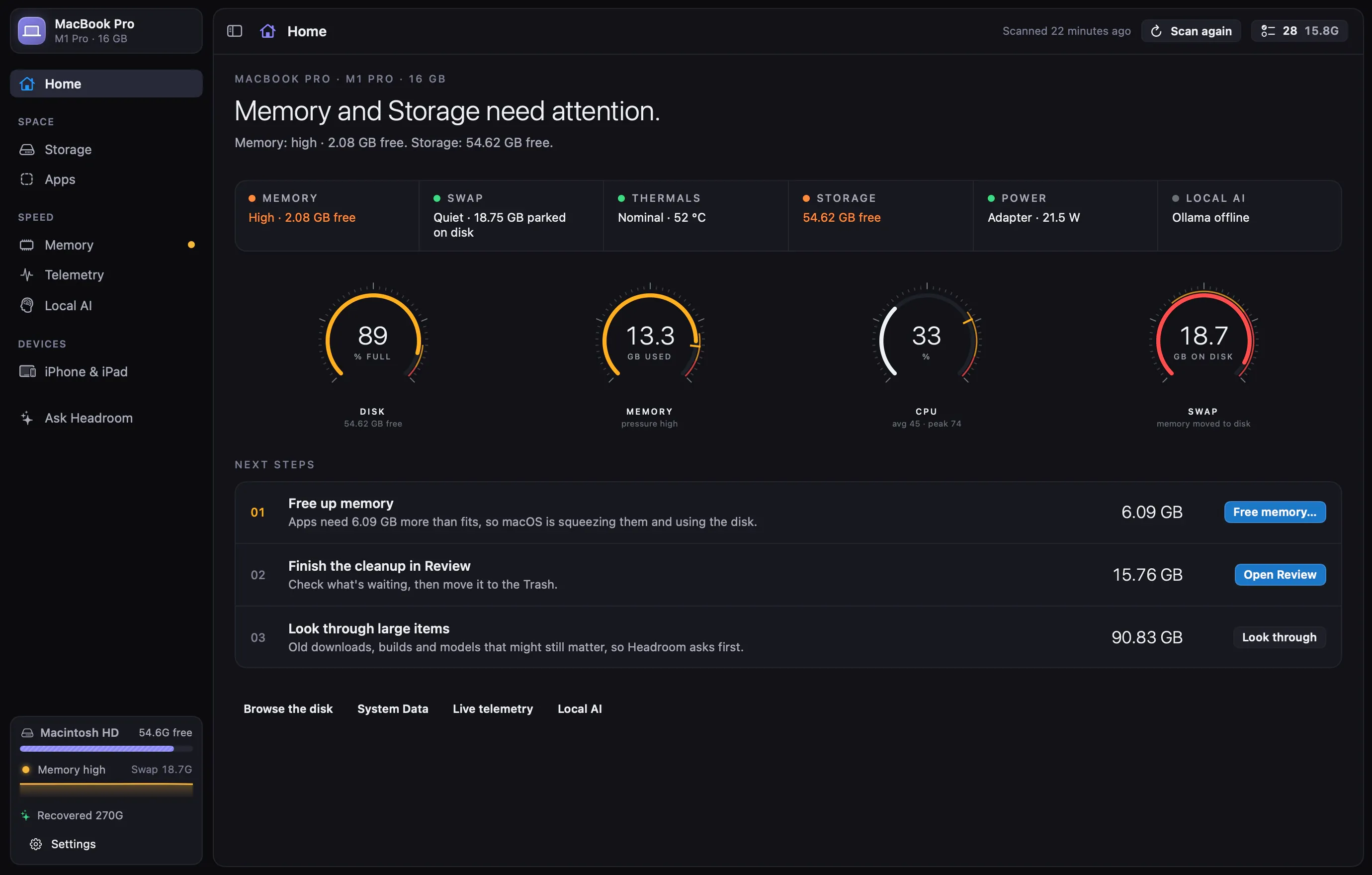
Headroom finds out what’s using your disk and memory, explains it in plain language, and helps you get space back safely. Nothing is deleted directly: it all goes to the Trash first, and History can put it back.
Knowledge rules
112
Each says what a folder is, who made it and whether it’s safe to remove.
Safety levels
3
Safe, Review and Keep. Keep is explained, never offered for deletion.
Deleted directly
0
Files go to the Trash, and History can put them back.
Themes
67
Colors, type and corners change. The layout never does.
The tour
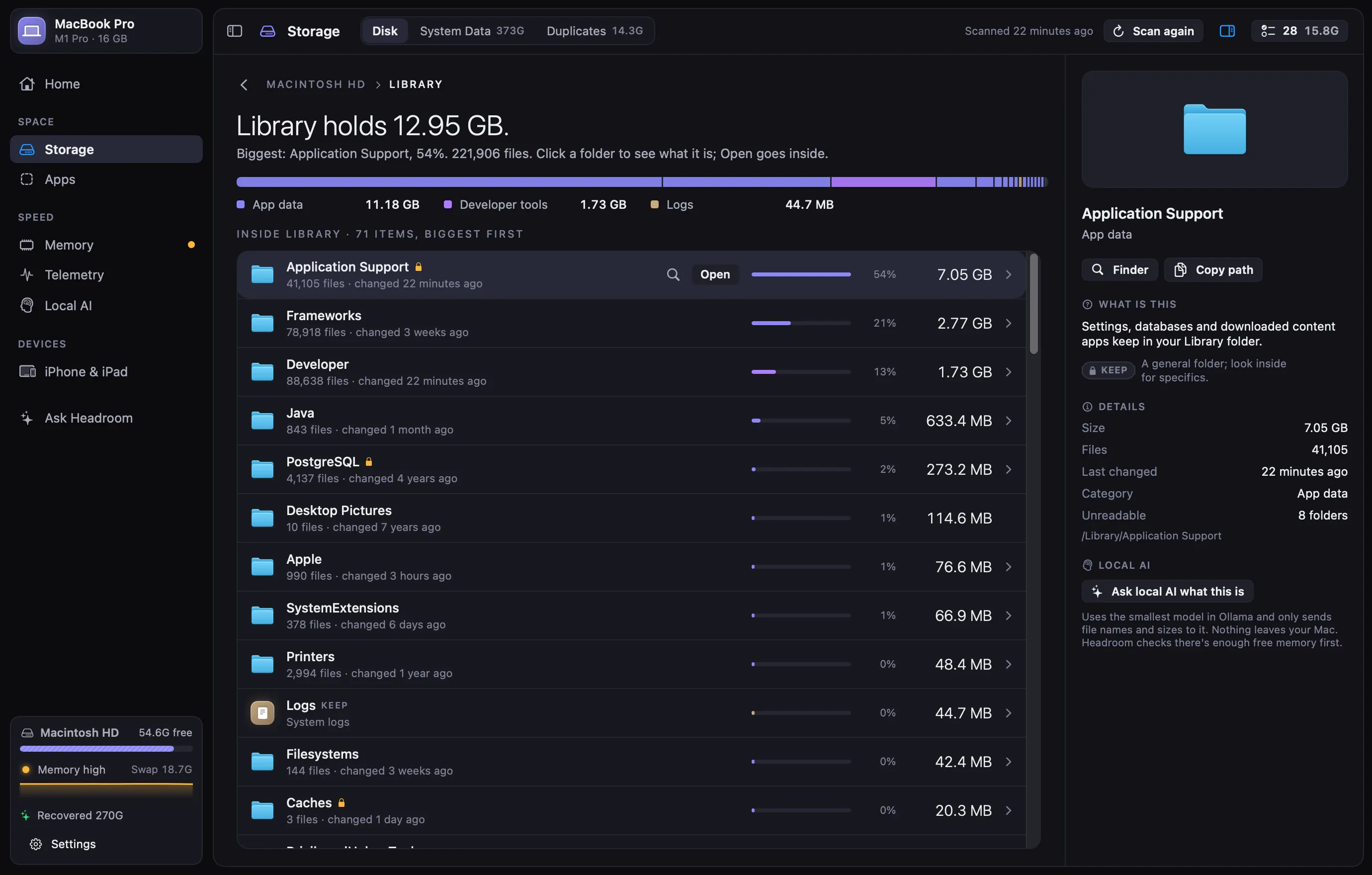
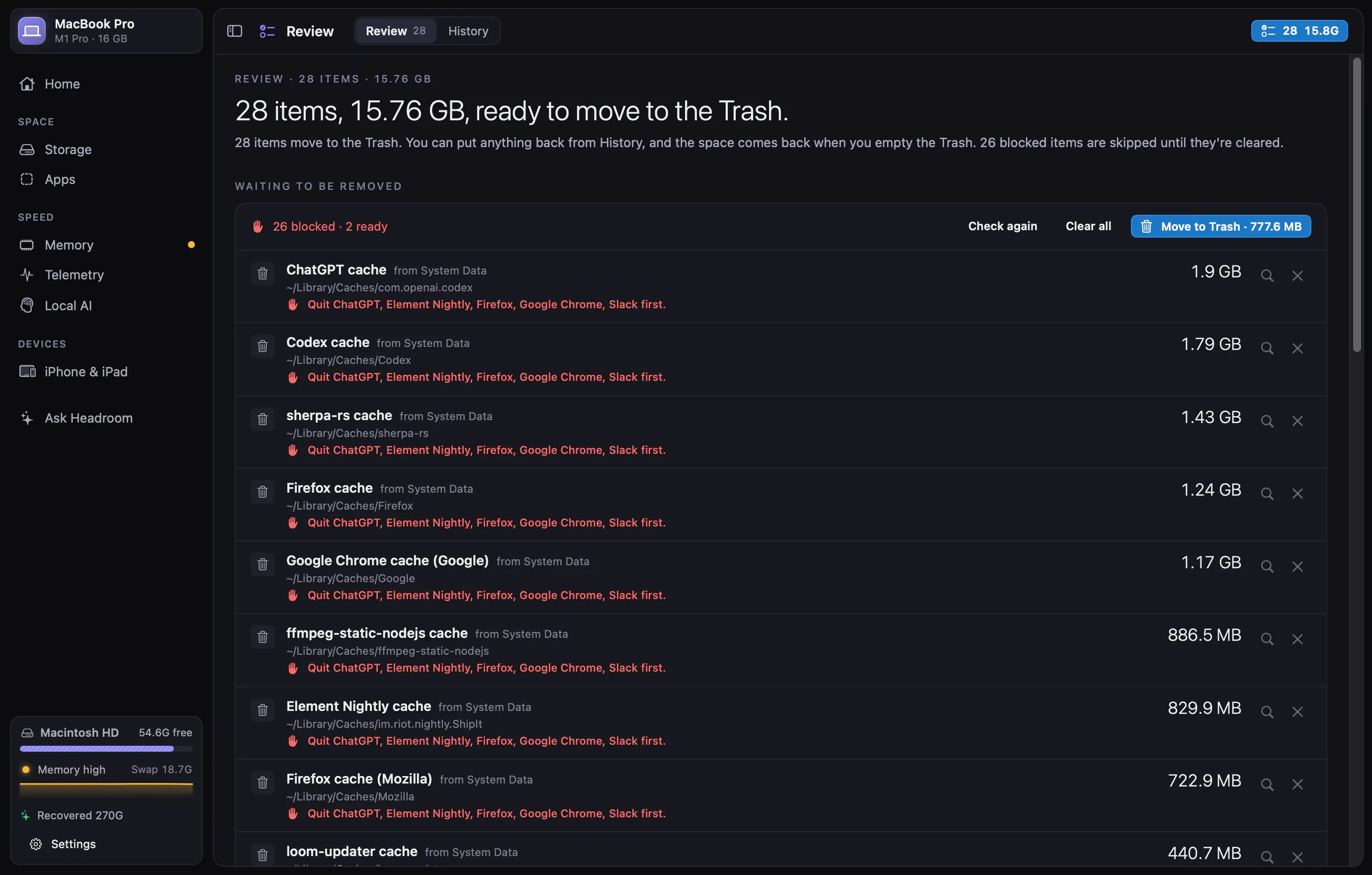
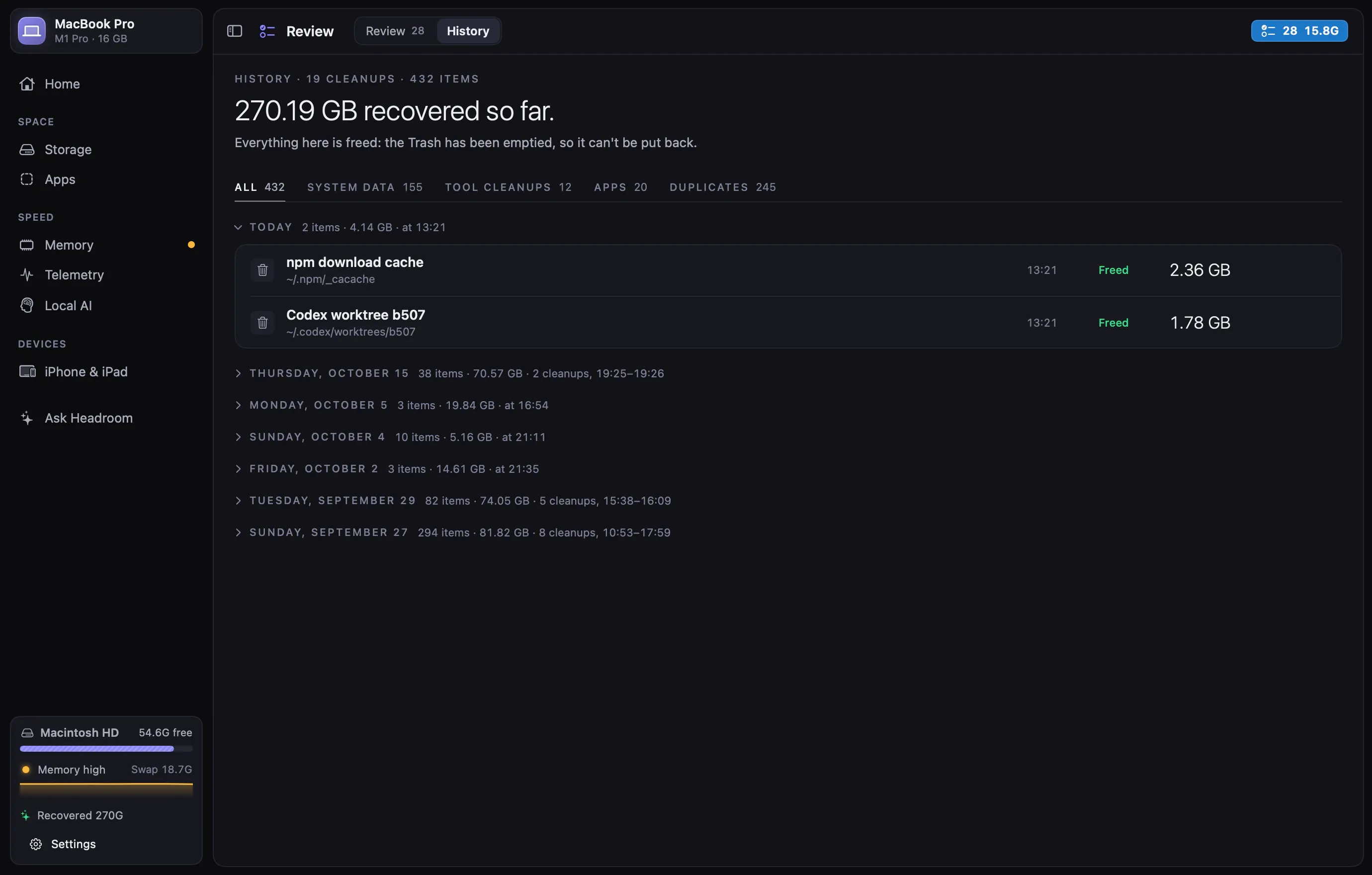
Every screen opens with one sentence on what matters and one button for it. Pick one, just like in the sidebar.
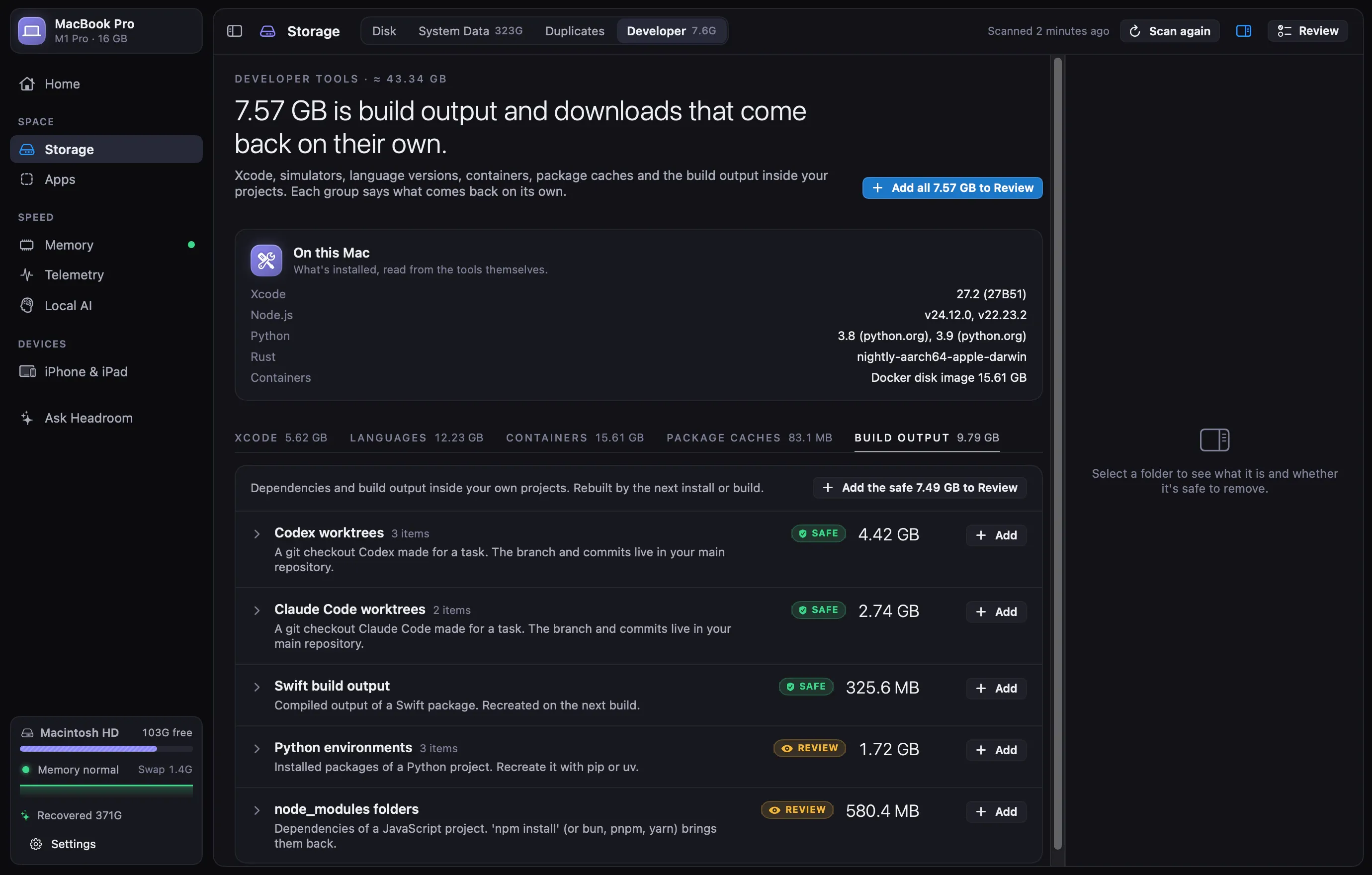
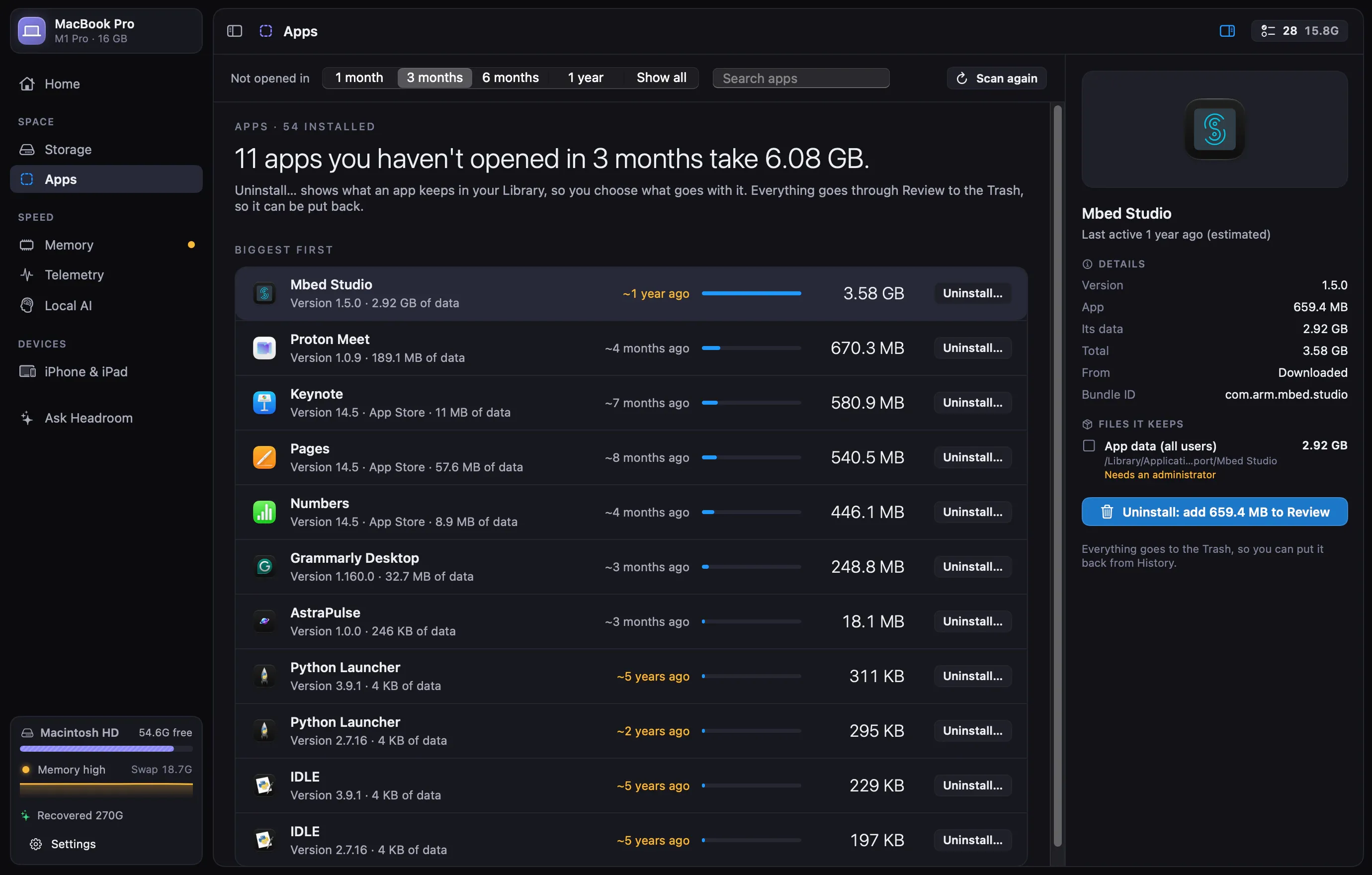
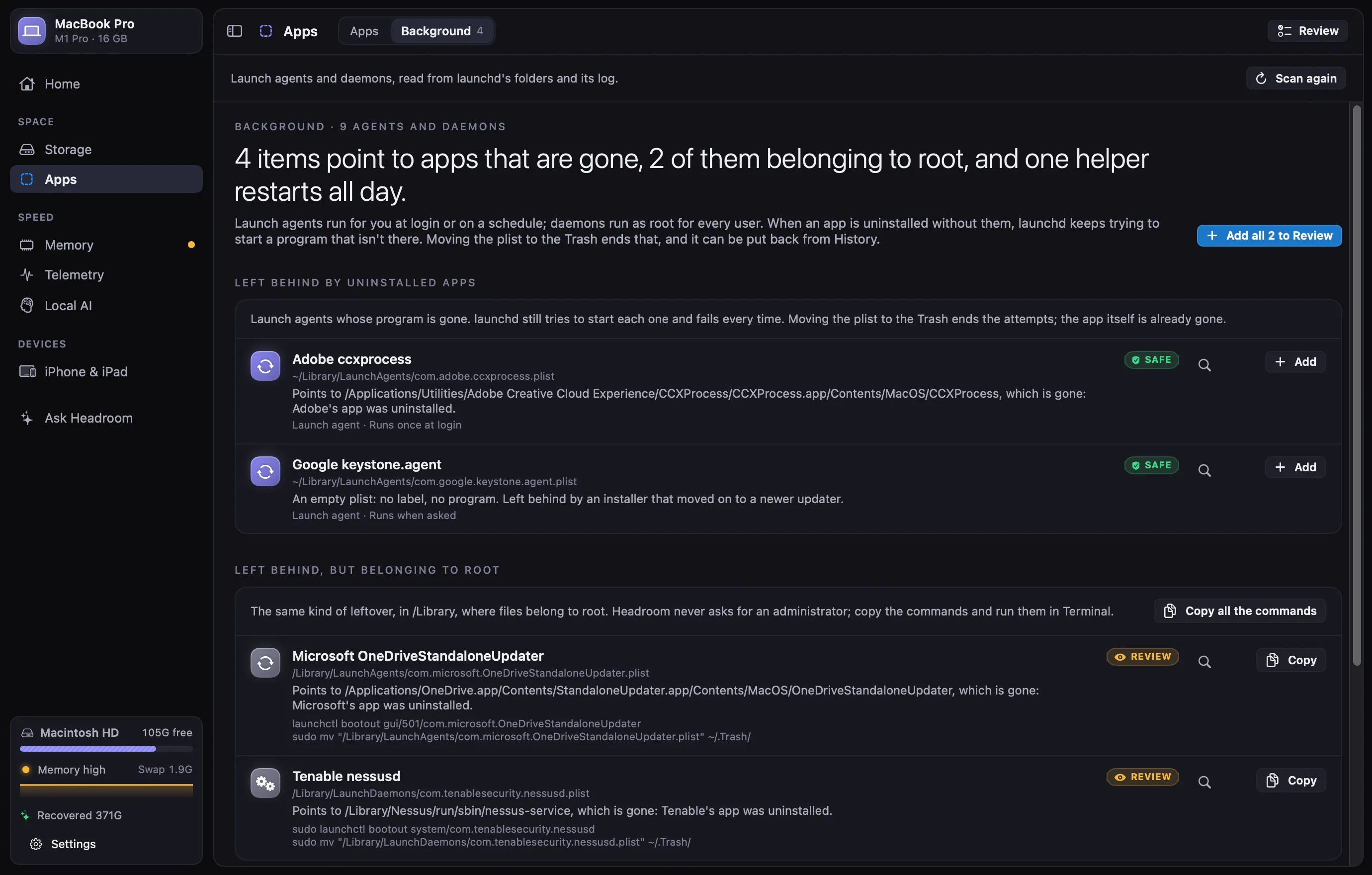
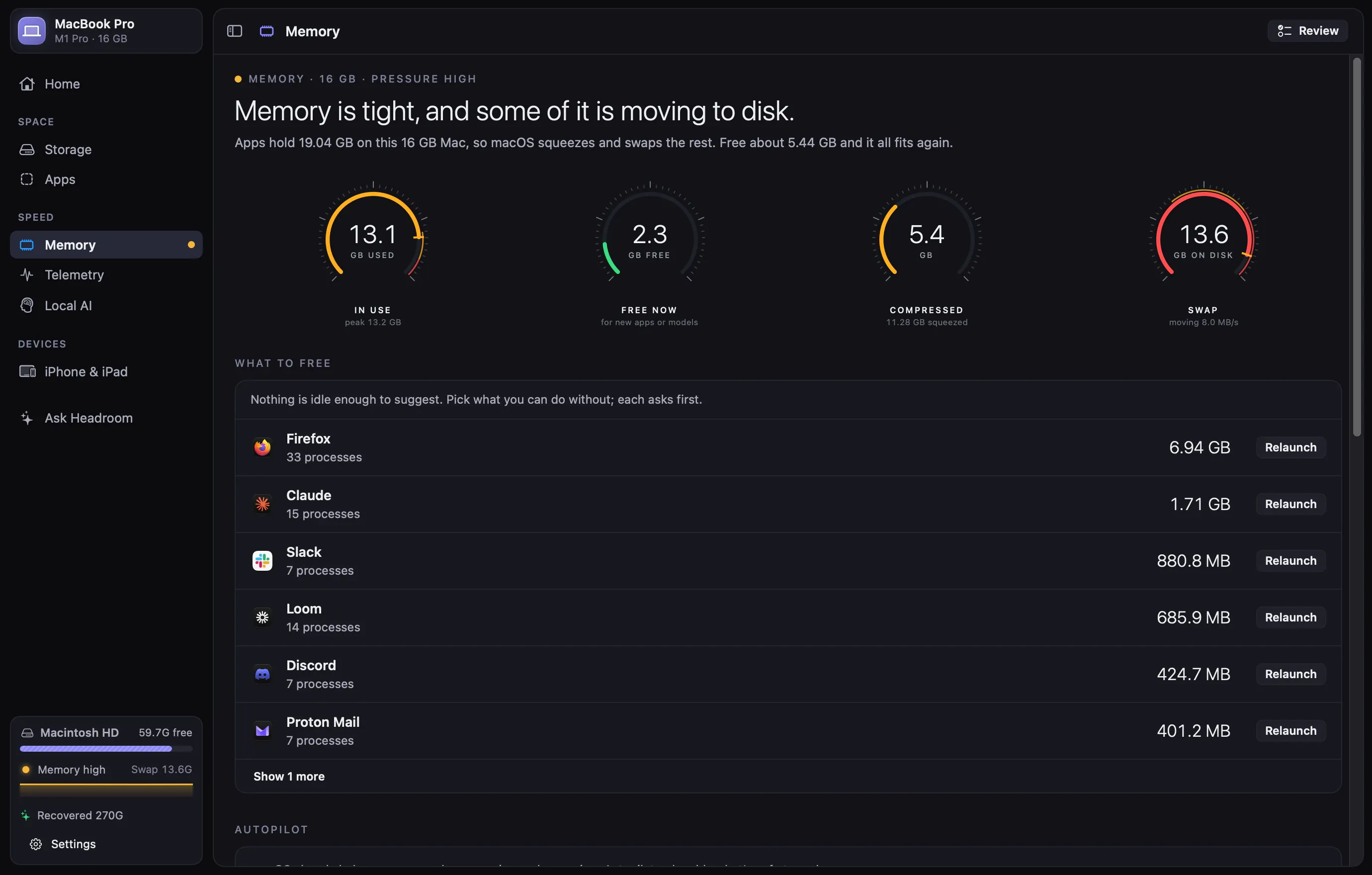
System Data
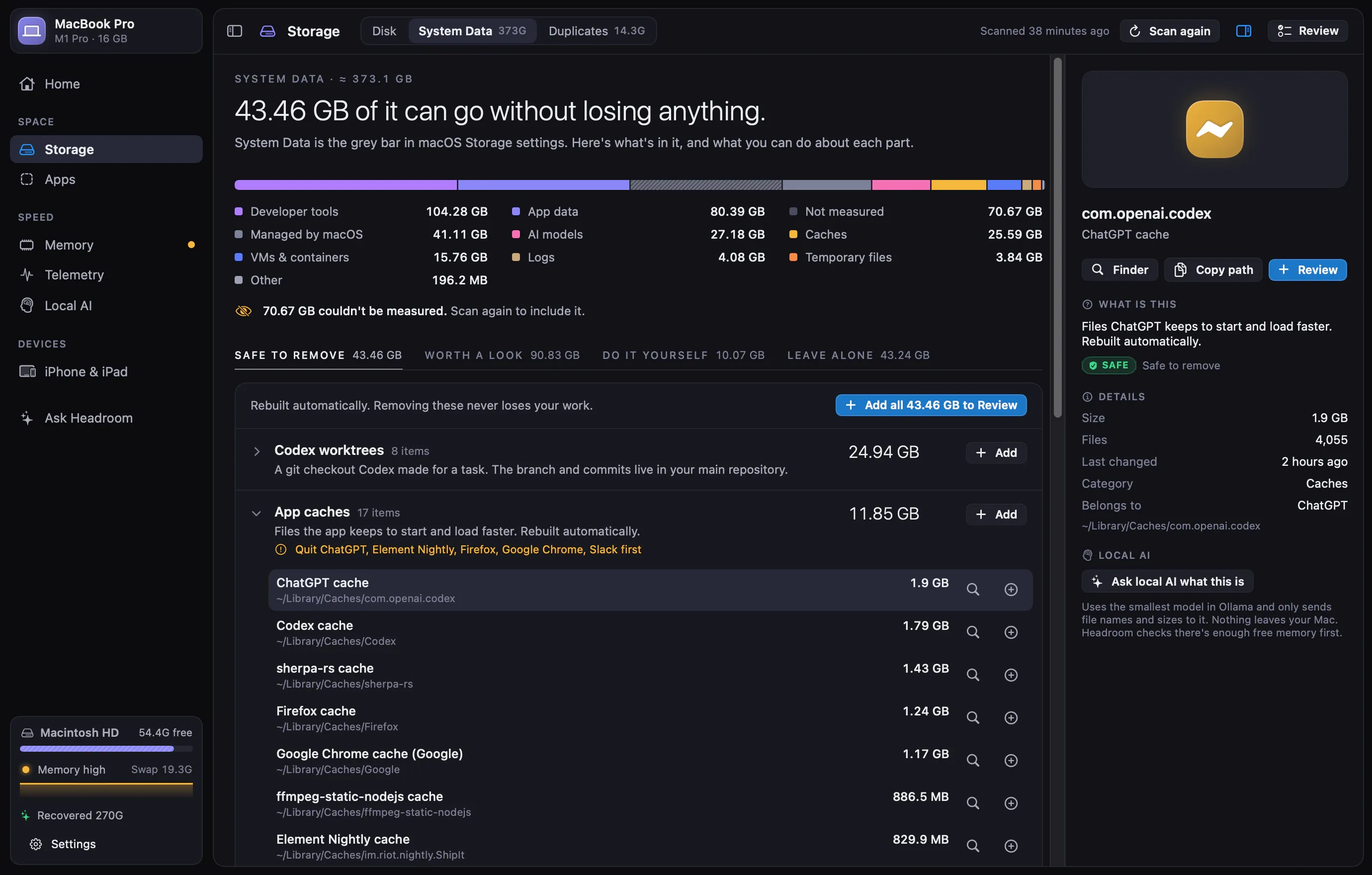
macOS shows “System Data” as one grey bar and leaves it there. Headroom takes it apart: what each piece is, who made it, and whether you can remove it without losing anything.
≈ 292.66 GB of System Data
From a real scan of a 16 GB MacBook Pro used for development.
Every finding explains itself
Developer tools
Intermediate build files for every project you’ve built (DerivedData). Xcode rebuilds them the next time you build.
Quit Xcode first
Caches
Installers Homebrew downloaded. Cleaned together with old package versions.
brew cleanupshown before it runs
VMs & containers
Docker’s Linux virtual machine: images, containers, volumes and build cache.
docker system pruneshown before it runs
Your files
Your email and attachments. Manage them in Mail, not here.
How it stays safe
Everything Headroom removes goes to the Trash first, and History can put it back. Before anything goes, it’s checked again, and anything that needs a closer look waits for you.
Rebuilt automatically when needed. Removing it doesn’t lose any of your work.
Caches, build output, package downloads, leftovers in /tmp.
Probably fine to remove, but it may hold something you or an app still wants.
Docker’s disk, simulator devices, node_modules, local AI models.
Managed by macOS or holds your own data. Headroom explains it but won’t delete it.
Mail, Messages, Photos, iCloud Drive, swap, the Spotlight index.
Protected locations are never touched. Every spelling of a path is normalized first: /var and /private/var, Data-volume paths, “..”.
Folders in use are blocked. If a running program works in a folder, like an agent’s worktree or a database’s data folder, it stays.
Uncommitted work is blocked. Git checkouts with changes you haven’t committed are left alone. Trashed worktrees are pruned from their repository.
Apps are quit first. A cache waits until the app that owns it is closed.
Admin work is opt-in, and fixed. Anything that needs an administrator is there to copy, unless you install the helper, which does four fixed things and never takes a command.
Duplicates are compared again. Right before acting, Headroom checks the copies are still identical.
Tool cleanups run only after you confirm, and Headroom shows you the exact command before it does.
$ brew cleanup
$ xcrun simctl delete unavailable
$ docker system prune
$ ollama rm qwen2.5vl:7bA local model only gives a second opinion on folders the knowledge base doesn’t know, from their names and sizes. An AI “yes” is capped at Review, and Headroom checks there’s enough free memory before it loads one.
History records every cleanup, one entry per day, with the space recovered and “Put back all” for a day or a category. Until you empty the Trash, nothing is gone.
Duplicates
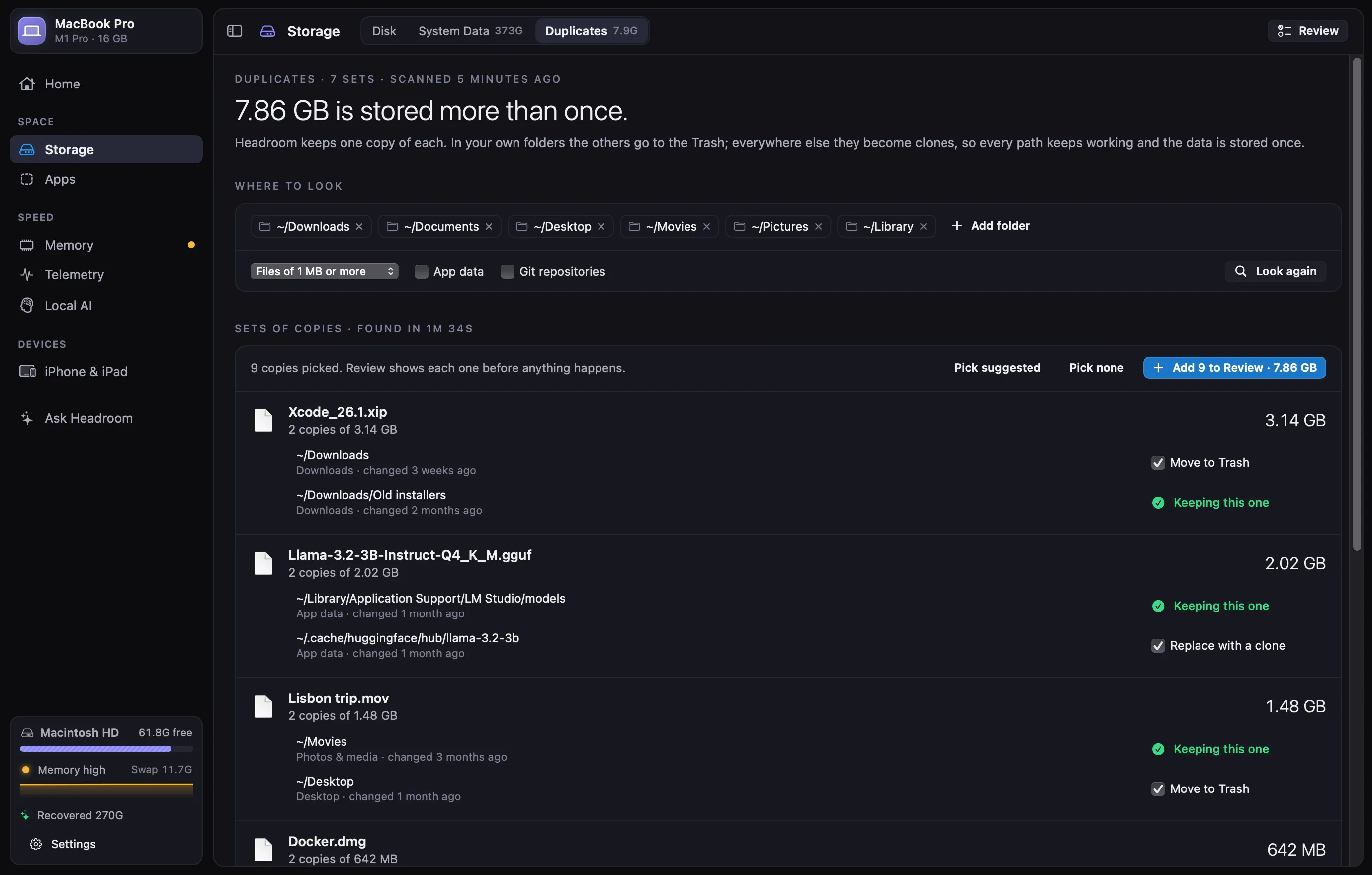
Headroom finds byte-identical files and gives you the space back without breaking anything that points to them. It even spots APFS clones, so it never promises space that deleting wouldn’t free.
A file with a size nothing else has can’t have a twin.
A quick look at both ends rules out most near-misses.
A hash of the whole file confirms it, byte for byte.
In your own folders
Downloads, Desktop, Documents and your media. Headroom suggests which copy to keep, and you can put the others back from History.
Everywhere else
SDKs, toolchains, projects and app data expect their files to be there. So both paths stay, and they share one copy on disk.
…/2026.09.02/node…/2026.09.23/nodeLocal AI
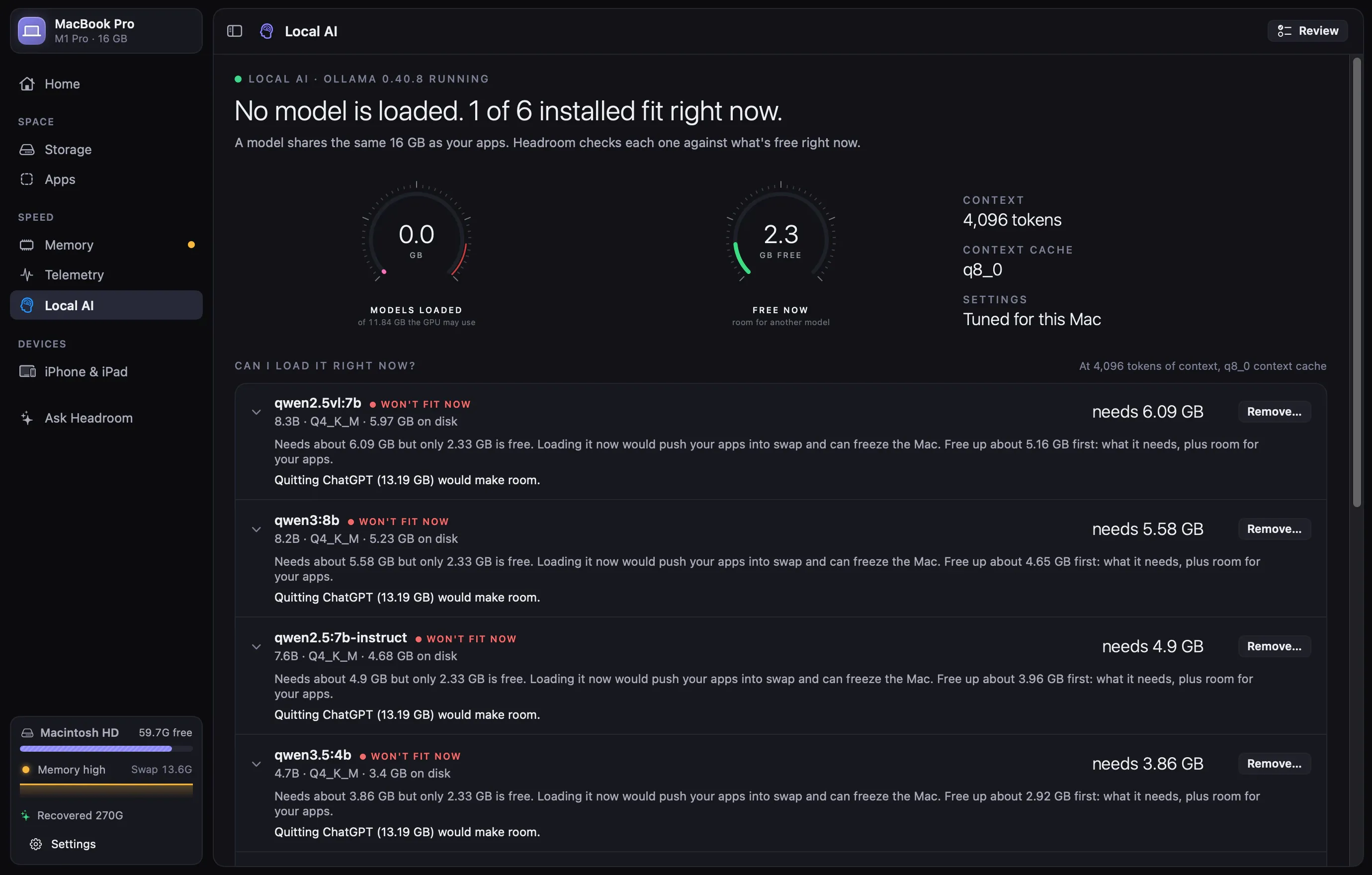
On Apple silicon, a model loads into the same memory as your apps. A 7–8B model at Q4 needs roughly 5–7 GB, counting its context cache. When that much isn’t free, macOS compresses and swaps your apps, and everything stalls. Headroom was built for a 16 GB MacBook Pro that runs local models, so it watches memory as closely as disk.
Unified memory · 16 GB
Can I load qwen2.5vl:7b right now?
Needs about 6.09 GB but only 4.36 GB is free. Loading it now would push your apps into swap and can freeze the Mac. Quitting Firefox (3.98 GB) would make room.
qwen2.5vl:7b8.3B · Q4_K_Mneeds ~6.09 GBWon’t fit nowqwen3:8b8.2B · Q4_K_Mneeds ~5.58 GBTightqwen2.5:7b-instruct7.6B · Q4_K_Mneeds ~4.9 GBTightqwen2.5:3b-instruct3.1B · Q4_K_Mneeds ~2.29 GBFits nowFrom each model’s architecture (layers × KV heads × head size × context), not just its file size.
Every installed model gets a verdict, and Headroom names the apps to quit to make room.
While a model is loaded it watches memory pressure, warns you, and can unload the model before the Mac locks up.
Recommended settings, applied with launchctl setenv when you say so.
Ollama settings for 16 GB
OLLAMA_MAX_LOADED_MODELSA chat model and a small embedding model, no more.2OLLAMA_NUM_PARALLELEach parallel slot copies the context.1OLLAMA_KEEP_ALIVEMemory comes back soon after use.2mOLLAMA_FLASH_ATTENTIONLeaner attention; needed for the next one.1OLLAMA_KV_CACHE_TYPEHalf the context memory.q8_0OLLAMA_CONTEXT_LENGTHA 4K default context.4096Memory
One sentence says whether memory is costing speed and how much would make it all fit again. Then every app, dev server and model that could give memory back, biggest first, each with its own Quit, Relaunch, Stop or Unload. The idle ones are suggested together, and Autopilot can unload a model that sits idle while memory is high.
macOS doesn’t label swapped memory with its app, so Headroom also shows which apps hold the compressed memory that ends up there.
Live · 1 Hz
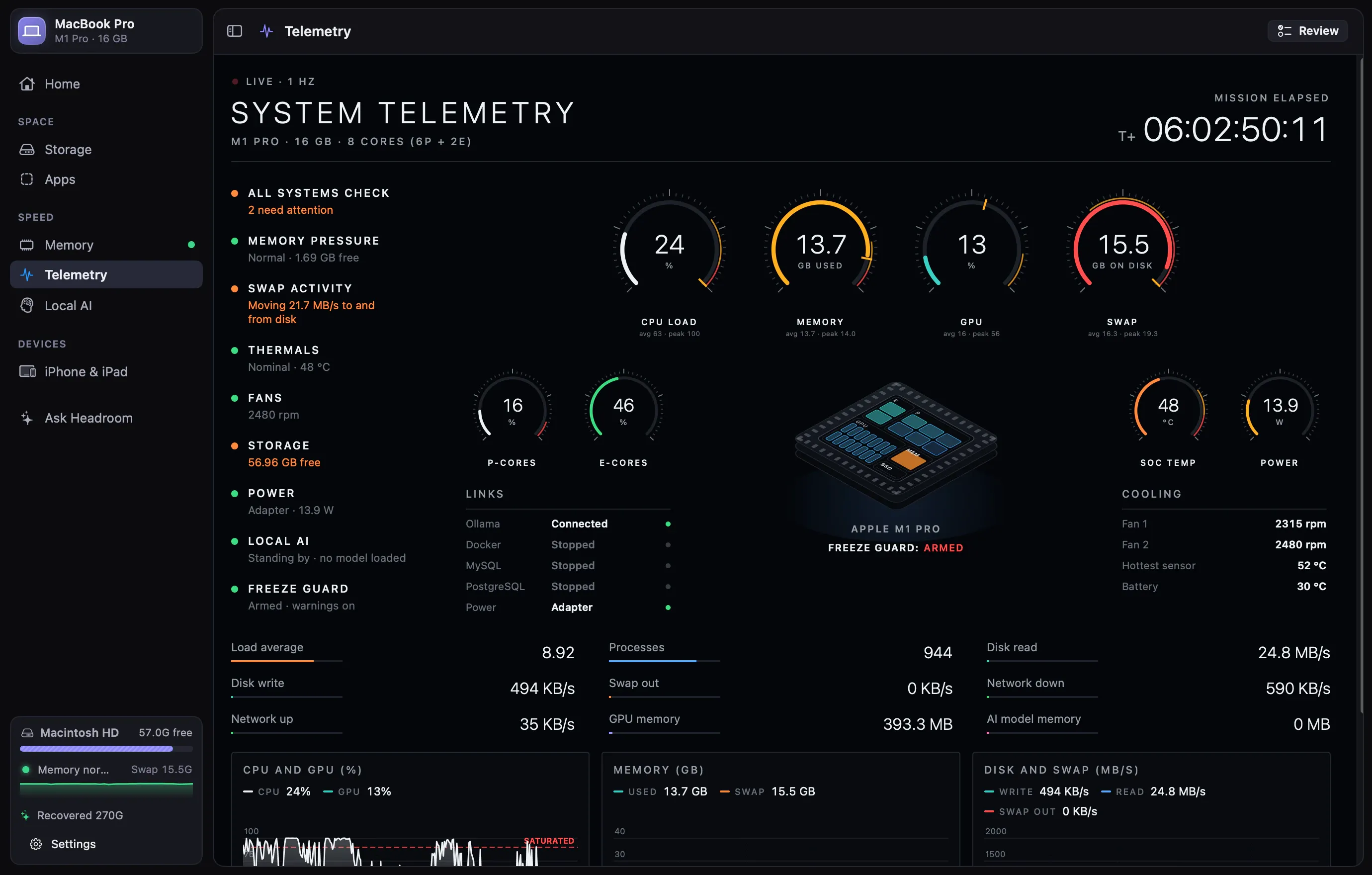
Black, hairlines and white traces: dials, a live chip map of every core, and strip charts with limit lines for CPU, memory, GPU, SSD, network, power, temperatures and fans. Point at any moment of the last five minutes, see the peaks, and export it. It only samples while you’re looking at it.
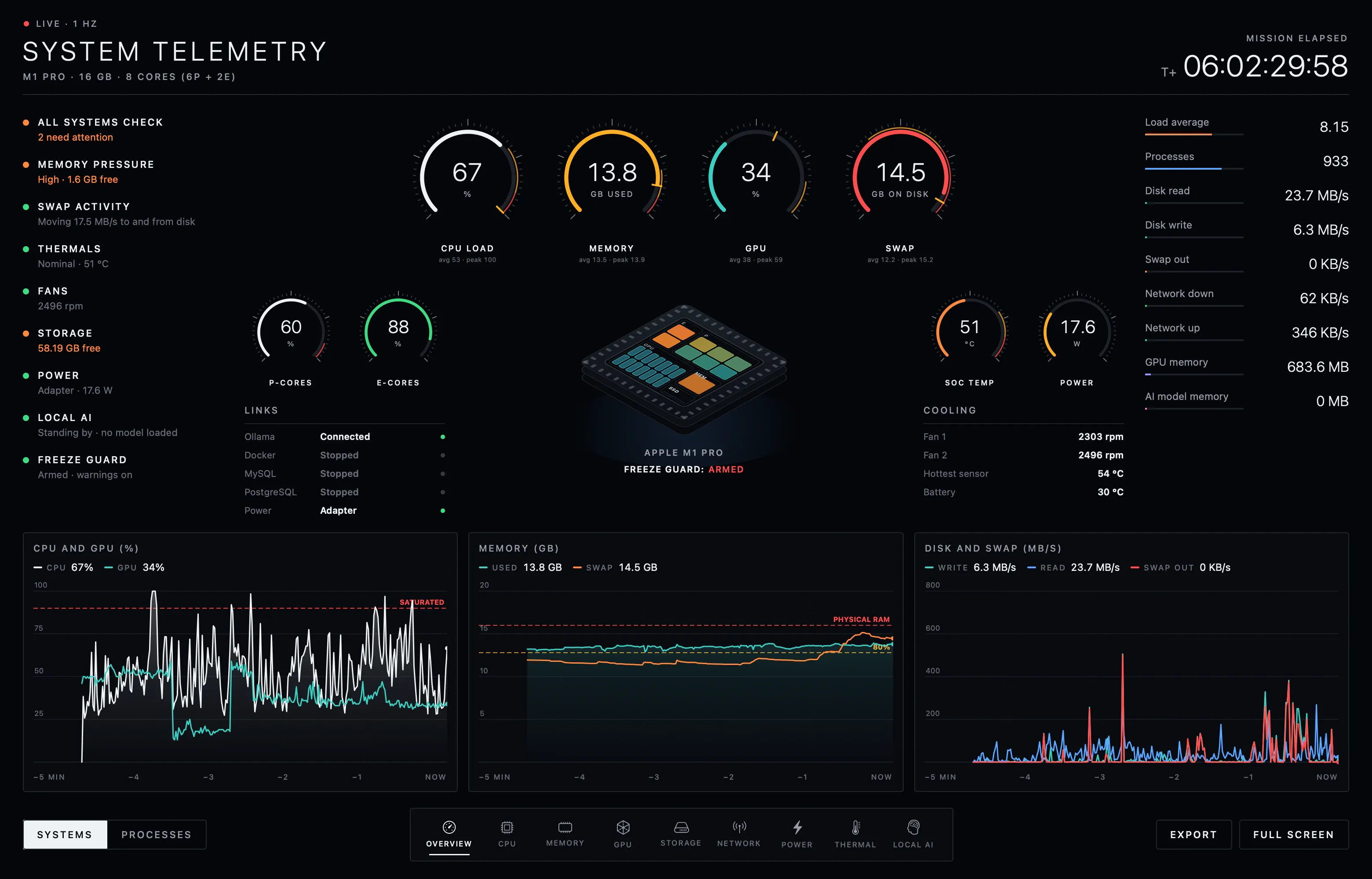
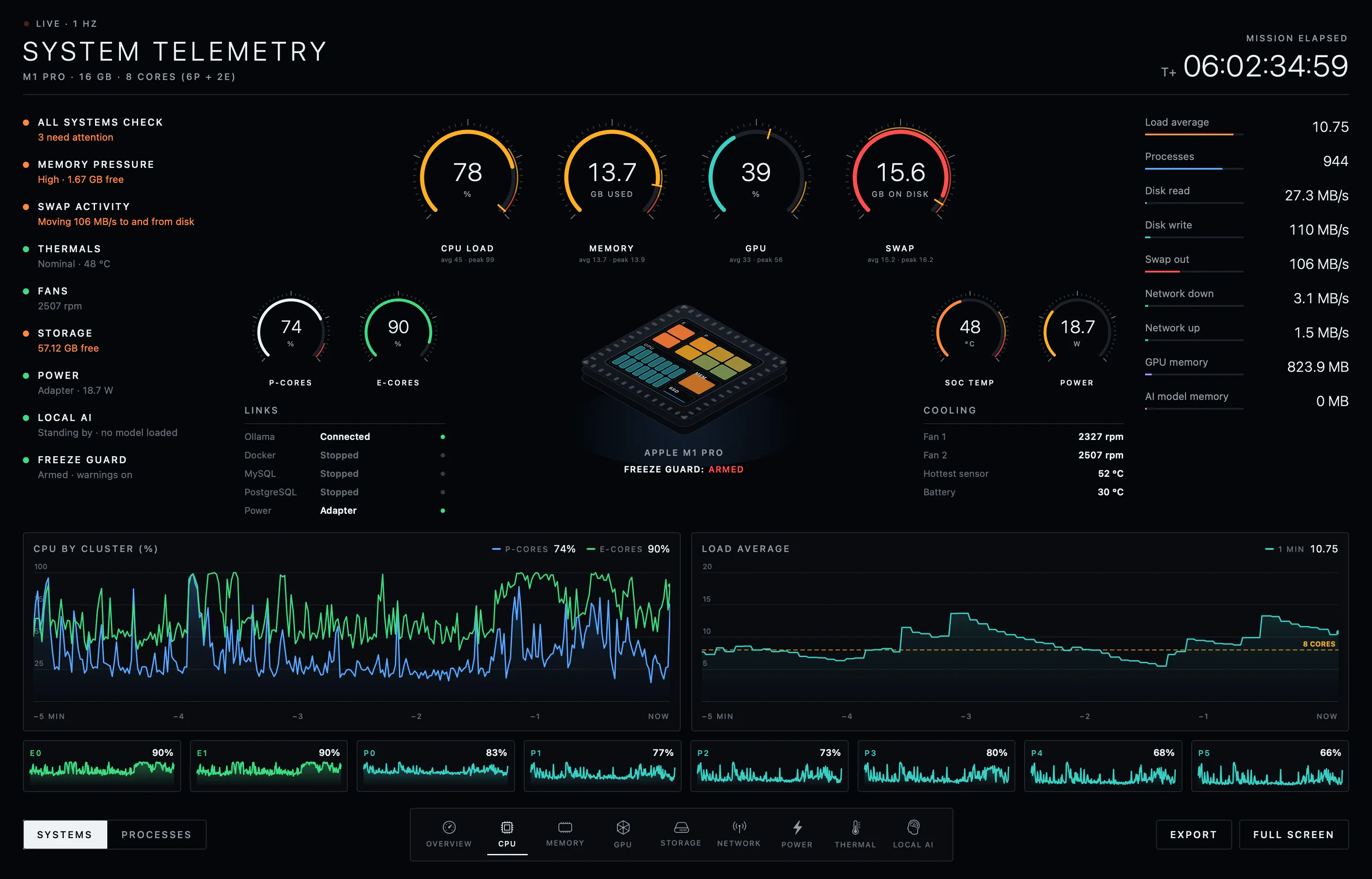
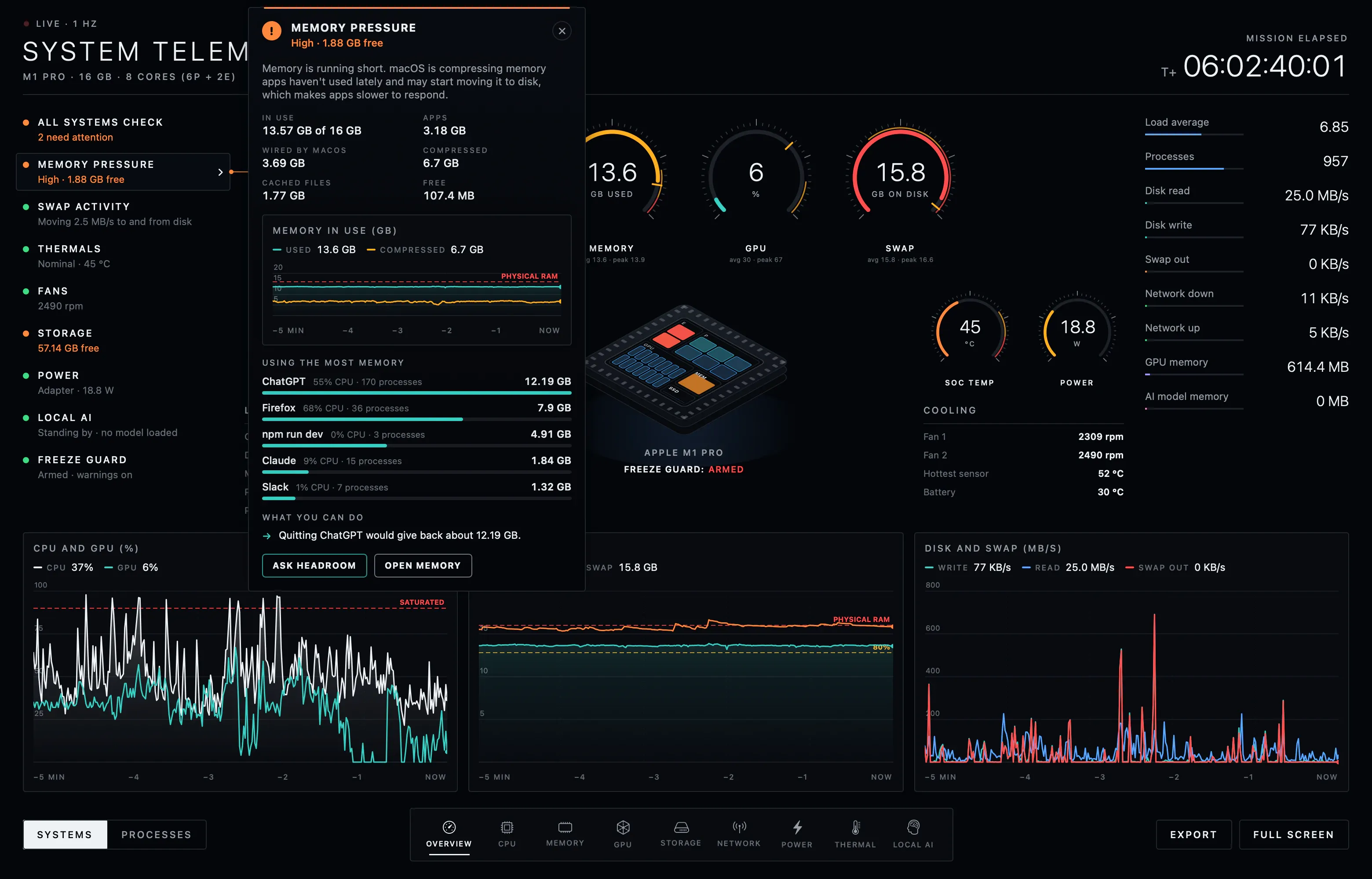
Memory, swap, thermals, fans, storage, power, local AI: each one explains itself, names the apps behind it and says what to do.
Hover any gauge or number to see what it measures and when to worry.
A chart of the loaded model’s memory against free memory, so you see a freeze coming.
Rest the pointer on any chart and every chart shows that moment. Dials mark their peaks, Export saves the readings as CSV, and the dashboard pops out to a second display.
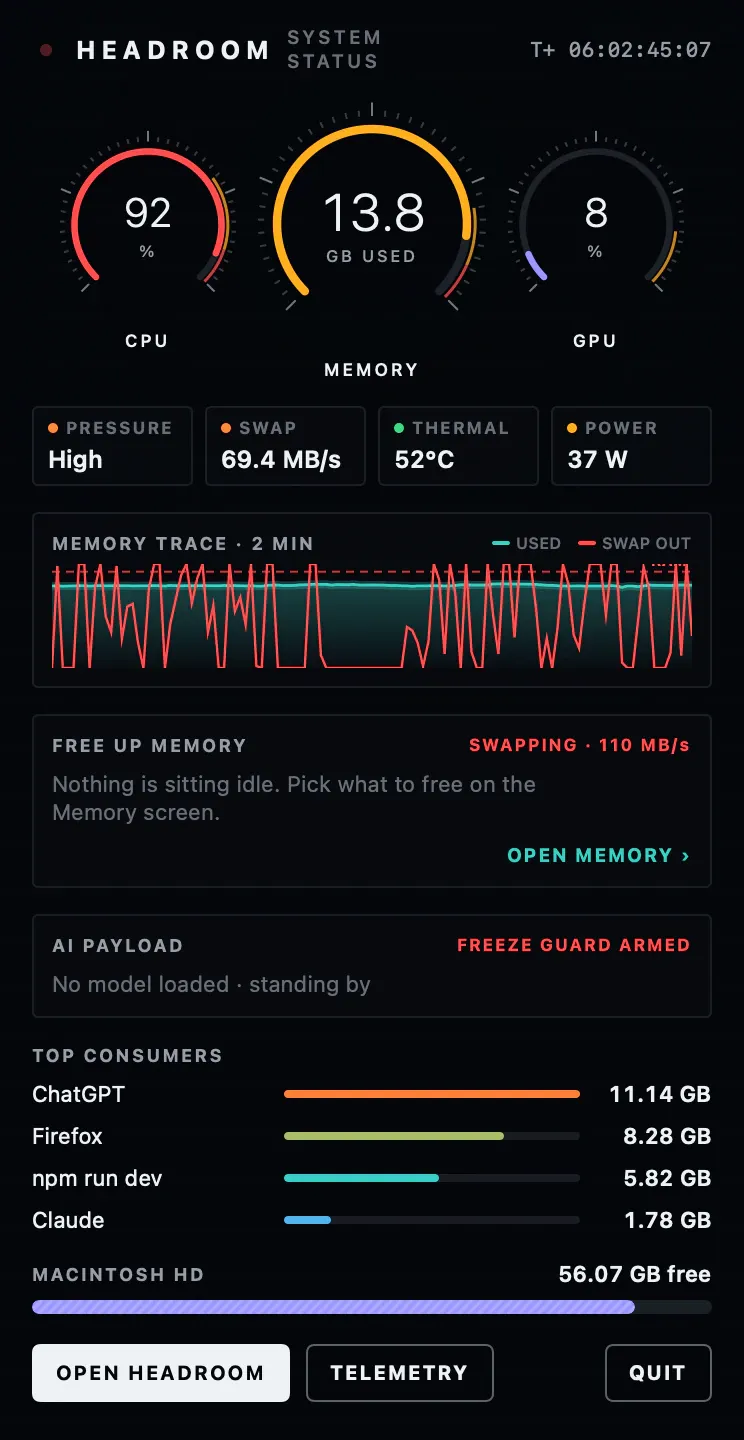
Menu bar console
CPU, memory and GPU gauges, status lights, a two-minute memory trace, loaded AI models with an Unload switch, the top consumers and your disk. The menu bar icon is itself a gauge that follows memory use.
The freeze guard keeps running from there, even with the main window closed.
Link · USB or Wi‑Fi
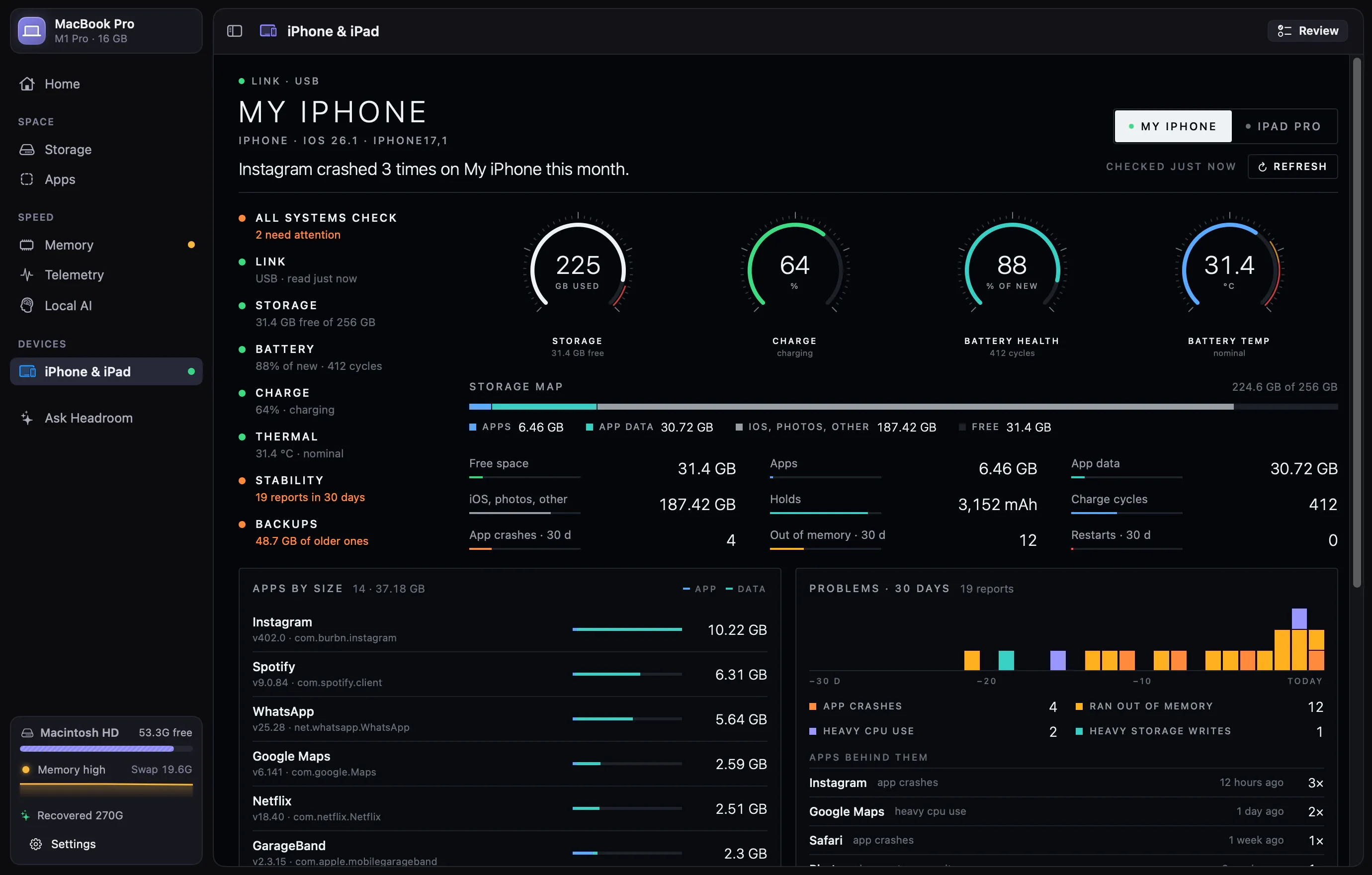
Plug one in, or keep it on the same Wi‑Fi, and it gets a console in the same launch-control look as Telemetry: one sentence on what’s wrong (nearly full, a worn battery, restarts, an app that keeps crashing), a checklist of its systems, and dials for storage, charge, battery health and temperature. Headroom only reads; it never changes anything on the device.
What fills the device, every app by size with its data, and where on the device to offload the ones you rarely use.
Charge, health against when it was new, charge cycles and temperature. It says when the battery is worn enough to replace.
Crashes, apps running out of memory, unexpected restarts and heavy CPU use on a 30-day timeline, from the reports the device kept, with the apps behind them.
Every Finder backup with its size and age. Older ones go to Review, then the Trash, so History can put them back.
Set up once
Headroom talks to devices with libimobiledevice, the free tools Finder’s protocol is built on. It shows the command to copy:
brew install libimobiledevice ideviceinstallerThen unlock the device and tap Trust. For Wi‑Fi, turn on “Show this iPhone when on Wi‑Fi” in Finder once.
Ask Headroom
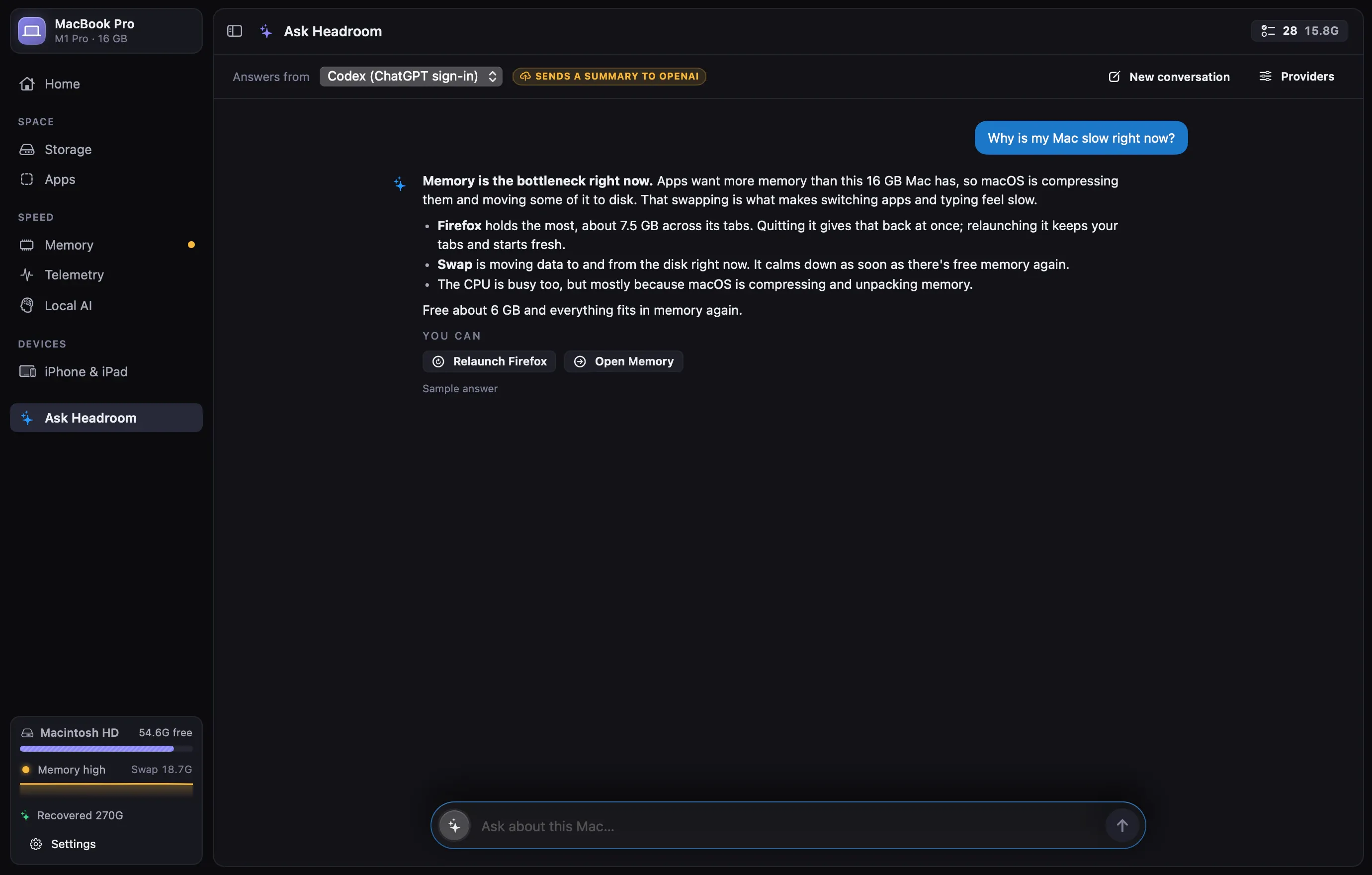
Ask Headroom answers from what it measures right now: memory and swap by app, CPU, temperatures, the disk scan and your local models. Every telemetry briefing has an “Ask Headroom” button, too.
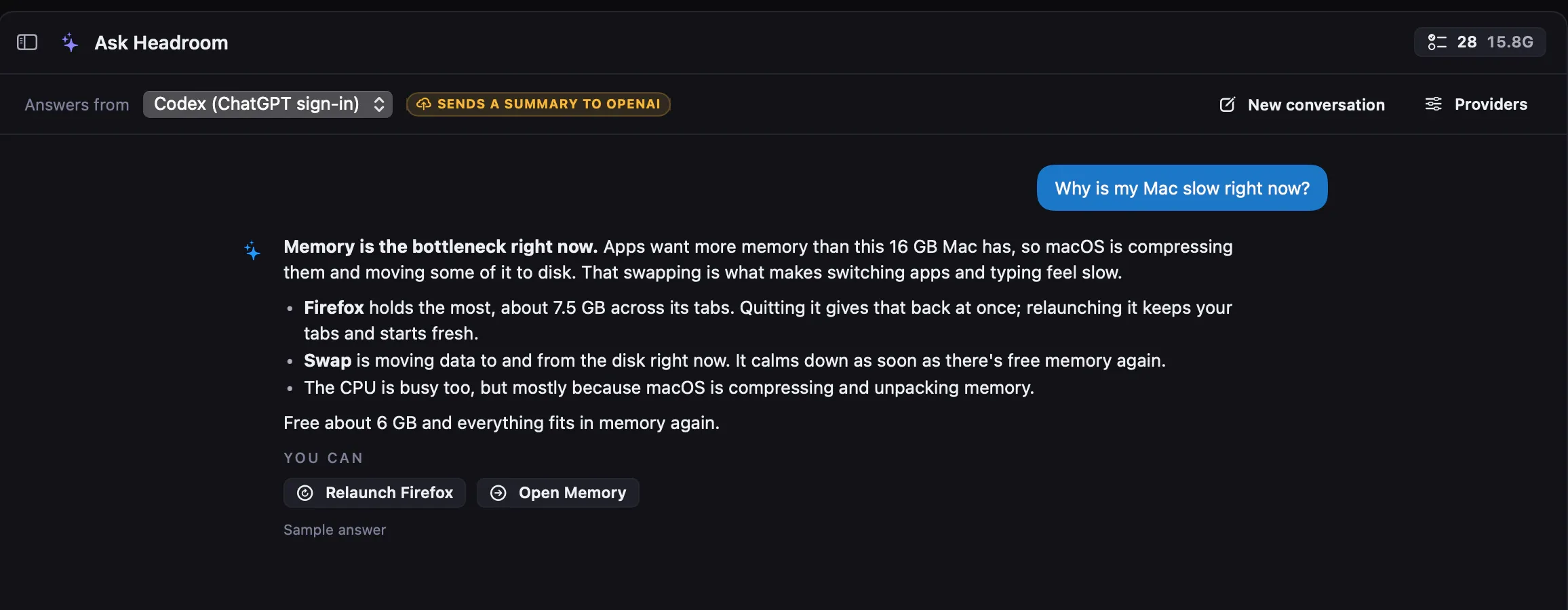
Pick who answers, in Settings ▸ Assistant
On this Mac
Apple Intelligence · Ollama
Nothing leaves your Mac.
With your ChatGPT sign-in
Codex
Through the Codex CLI, with its commands, browser and plugins switched off, so it can only answer.
With your own API key
Claude · OpenAI · Grok
The key is kept in your keychain.
App names, sizes and readings. Never file contents, file paths or browsing data.
Answers can offer buttons: quit an app, unload a model, open a screen, add safe items to Review.
Themes
Headroom’s own three looks, Launch among them, the 10 Cardy skins and all54 Noted themes. Themes change colors, type and corners only: layouts stay the same, and button text always meets 4.5:1 contrast. Try one.
Headroom
Headroom's own look: blue-tinted grays and a bright blue accent.
Headroom’s own 3
Cardy skins 10
From Noted 54
Get started
Unzip it, move it to your Applications folder and open it. The first time, macOS says it can’t check the app: open System Settings ▸ Privacy & Security and click Open Anyway. After that, Headroom updates itself: it checks once a day, and installing takes one click.
In System Settings ▸ Privacy & Security ▸ Full Disk Access, add Headroom and switch it on. Without it, macOS hides the Trash, Mail, Messages, Photos and other apps’ private folders, and that space shows up as “Not measured”. Headroom only reads them.
Everything Headroom finds is sorted into Safe, Review and Keep. Nothing is removed until you confirm it in Review, and results are kept after you quit.
Questions
No. Nothing is removed until you confirm it in Review, files go to the Trash rather than being deleted, and History can put them back. Tool cleanups like brew cleanup or docker system prune run only after you confirm, and you see the exact command first.
Without it, macOS hides the Trash, Mail, Messages, Photos and other apps’ private folders, so that space can only be shown as “Not measured”. Headroom only reads those folders, and things like Mail and Messages are marked Keep: explained, never offered for deletion.
Scans, duplicate searches and app reviews stay on your Mac. Ask Headroom answers on your Mac with Apple Intelligence or Ollama. If you pick a cloud provider instead, each question sends a summary of app names, sizes and readings: never file contents, file paths or browsing data.
Only a second opinion on folders the knowledge base doesn’t recognize, from their names and sizes. It never decides: an AI “yes” is capped at Review. Headroom checks there’s enough free memory before it loads a model.
Yes. History keeps one entry per day with every category inside, and “Put back all” restores a day or a category, as long as the files are still in the Trash.
No. Ollama powers the Local AI screen and the optional second opinions. Everything else works without it.
No. Headroom only reads a device: storage, battery, apps and the crash reports it kept. To free space on it, Headroom tells you where to offload apps on the device itself. The only thing it can remove is an old backup on your Mac, through Review and the Trash like everything else.
Headroom checks this website once a day, and you can check any time from the Headroom menu or Settings ▸ General. When there’s a new version, the sidebar offers it. Before installing, Headroom checks the download against its published checksum and makes sure it’s signed by the same developer, then restarts into it.
Macs with Apple silicon running macOS 15 Sequoia or later.

See what’s using your disk and memory, and get space back without the second thoughts.